

During breaks from school or work, do you ever want to open Instagram and quietly browse content, only to repeatedly encounter an Access Denied (Access denied) message? Schools and workplaces often restrict access to overseas social platforms like this to maintain study and work efficiency, regulate network usage, and strengthen internal network security. If you want to balance work and relaxation and browse content normally, try this practical tool.
This guide will show you how to use P1Browser to safely and easily remove access restrictions and connect smoothly to Instagram anytime, anywhere.

How Is Instagram Blocked?
Network restrictions are a major source of frustration for many users who want to browse information and access overseas community platforms. Common restrictions mainly fall into three categories:
Administrative policy restrictions:Schools and businesses establish relevant policies to help everyone focus on studying and working, directly prohibiting access to community media platforms such as Instagram.
Firewall and content filtering:IT departments control network traffic through firewalls and content filters, blocking Instagram’s connection channels according to security rules.
Network-wide blocking:Some locations configure restrictions for the network across an entire area. All devices connected to that Wi‑Fi or internal network are subject to access restrictions.
To bypass these types of network restrictions,P1Browser is an efficient and reliable choice. The following section explains in detail how it enables unrestricted access to Instagram.
Why can P1Browser successfully unblock Instagram?
How the tool works
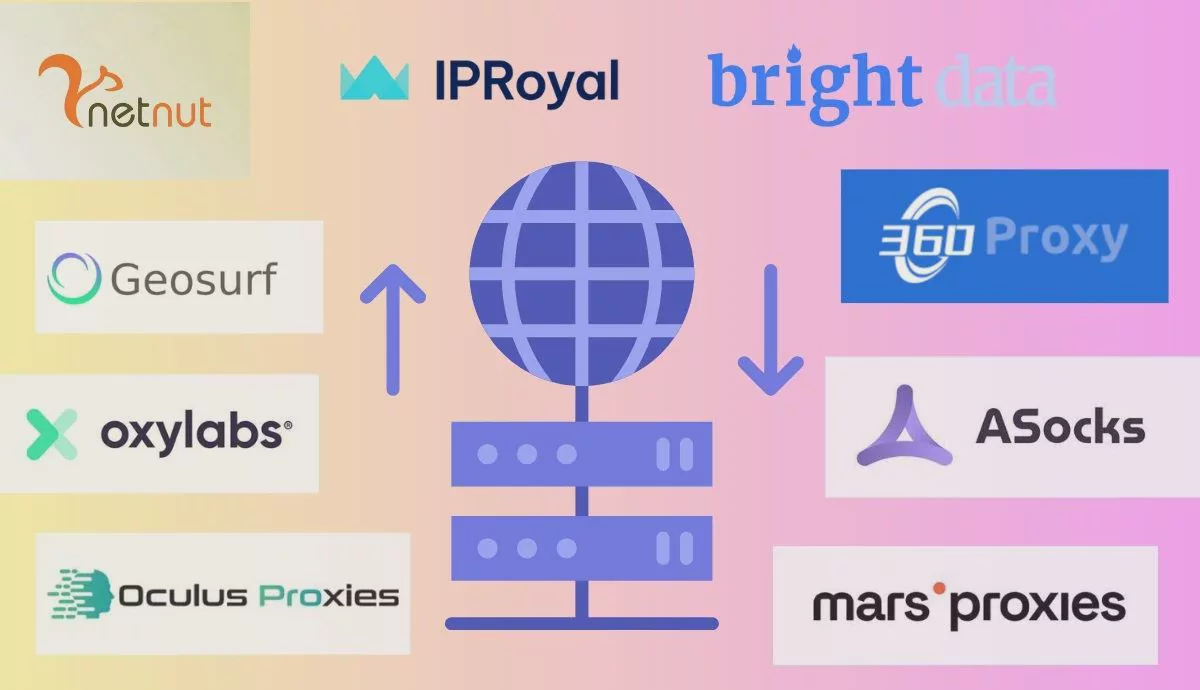
P1Browser is a professional browser with fingerprint isolation and built-in network proxy functionality, featuring a mature network forwarding mechanism. It redirects your network traffic, replacing the local device IP and network identification information, and bypasses firewalls and access restrictions on campus and office intranets.
Simply put, the intranet no longer detects your local network information, causing the original access restrictions to become ineffective and allowing you to open and use Instagram normally. The software also provides network optimization capabilities, effectively reducing network latency and improving your browsing and interaction experience.
Network Mode Categories
To accommodate different usage scenarios, P1Browser offers multiple network solutions to meet a variety of needs:
Residential Network Mode:Simulates a real home broadband IP, with low detectability and high privacy. It is suitable for browsing community platforms over extended periods and managing multiple accounts, delivering excellent security and anonymity.
Mobile Network Mode:Simulate a mobile network environment. The IP changes dynamically, making it easy to bypass regional access restrictions, with effective anti-tracking and anti-interception protection. It is also quite stable for use while traveling.
Data Center Network Mode:Focused on high speed, low latency, and excellent cost-effectiveness, with large network transmission capacity. Suitable for high-traffic usage scenarios such as frequent browsing, content scraping, and large-scale tasks.
How to Use P1Browser to Unblock Instagram?
Step One: Install and Enable P1Browser
Go to the official channel to download the genuine P1Browser, select the corresponding installation package according to your device system (computer / mobile), and complete the installation.
Open the software, follow the instructions to complete account login and basic settings. The software comes with full network compatibility features by default, so there is no need to install additional plugins.
Step Two: Choose a Network Plan and Configure the Environment
According to your usage scenario, switch to the corresponding network mode (residential / mobile / data center) in P1Browser.
If you are using a dedicated network node, go to the software's network settings page, manually enter the node IP, connection port, account password, and other information, then save the settings.
The software supports bulk configuration and one-click switching between network plans, making it highly convenient to switch between multiple usage scenarios.
Step Three: Enable Normal Instagram Use
After completing the network settings, simply add a tab in P1Browser and enter the Instagram URL to bypass access restrictions and freely browse, post, and interact.
Additional: Universal Mobile & Desktop Instructions
Desktop Version: Open P1Browser → Select “Network Management” from the left-hand menu → Select / configure a network node → Add a tab to access Instagram.
Mobile version: Launch P1Browser → Click the network icon in the upper-right corner → Switch network modes → Open the platform link directly.
Key Advantages of Using P1Browser to Access Instagram
-
Bypass Various Access and Regional RestrictionsWhether it’s blocking on a school or corporate intranet or regional network restrictions, P1Browser can bypass them with ease. By simulating network environments in different regions through multiple network nodes, you can smoothly browse Instagram content from around the world, follow overseas creators, and participate in community interactions without restrictions.
-
Securely Manage Multiple AccountsThe software features kernel-level environment isolation technology, allowing each account to be paired independently with a dedicated network and device fingerprint. Multiple accounts can be logged in and switched between simultaneously without triggering the platform’s security risk controls, helping you avoid account warnings and lockouts. It is a practical tool for managing community accounts.
-
Enhanced Privacy ProtectionP1Browser hides your real IP address, device information, and network characteristics. Platforms and third parties cannot intercept your real identity data, effectively protecting against tracking and information theft while providing comprehensive protection for your personal privacy.
-
Integrated design, easy operationNo additional downloads or other tools are required. Network switching, environment isolation, and fingerprint masking are all integrated into the software, allowing even beginners to get started quickly and use it whenever needed.
Usage precautions and self-check methods
When using the software, please pay attention to the network status and relevant regulations to avoid potential risks:
Network stability:Prioritize high-quality network nodes. If latency or disconnections occur, you can switch nodes with one click within P1Browser to restore a smooth connection.
Privacy check:P1Browser includes a built-in network status detection tool. Enable the “Network Check” feature in the software to instantly view the current IP attribution, network type, and whether there is a risk of information leakage. If the test results are abnormal, promptly switch network nodes or reconfigure the settings.
Compliance reminder:Please comply with the management policies of your organization and local laws and regulations related to the internet. Use the software properly and reasonably, and never engage in prohibited activities.
Summary
In the face of access restrictions on Instagram in schools and workplaces,P1Browser is a simple, efficient, and secure solution. It not only effortlessly bypasses network restrictions but also offers practical features such as multi-account management, privacy protection, and network acceleration.
Whether for everyday browsing, interacting with overseas communities, or managing multiple accounts, it handles everything with ease. Combined with the software’s built-in network detection feature for regular checks, it provides a stable, secure, and unrestricted user experience.