



I. Causes of Slow Internet Speeds and Solutions
1.1 Router Overheating or Cache Overload
Most routers operate with power on almost all day. Like other electronic devices, prolonged operation can easily cause a router to overheat, thereby reducing network performance and even causing disconnections. In addition, routers store temporary data to speed up the processing of access requests and reduce network latency. If they operate for a long time without being restarted, large amounts of idle data will accumulate in memory, causingCache overload.
Solution
Regularly restart the router to clear the cache. This method is suitable for most situations, as follows:
Turn off the power, wait 10 to 15 seconds, or leave the device unplugged until it has cooled completely.
Reconnect the power and wait for the router to fully start up. This process takes approximately several minutes.
If frequent restarts still do not resolve the issue and other causes have been ruled out, you can try restoring the router to its factory settings. This action will erase all custom settings, including the network name and password, so do not use it unless necessary. If you are unfamiliar with the procedure, consult a professional first. The reset steps are as follows:
Locate the reset button on the back of the device (usually designed as a pinhole).
Using a thin tool such as a paper clip, press and hold the reset button for approximately 10 to 15 seconds.
Observe the indicator lights until the reset process is complete.
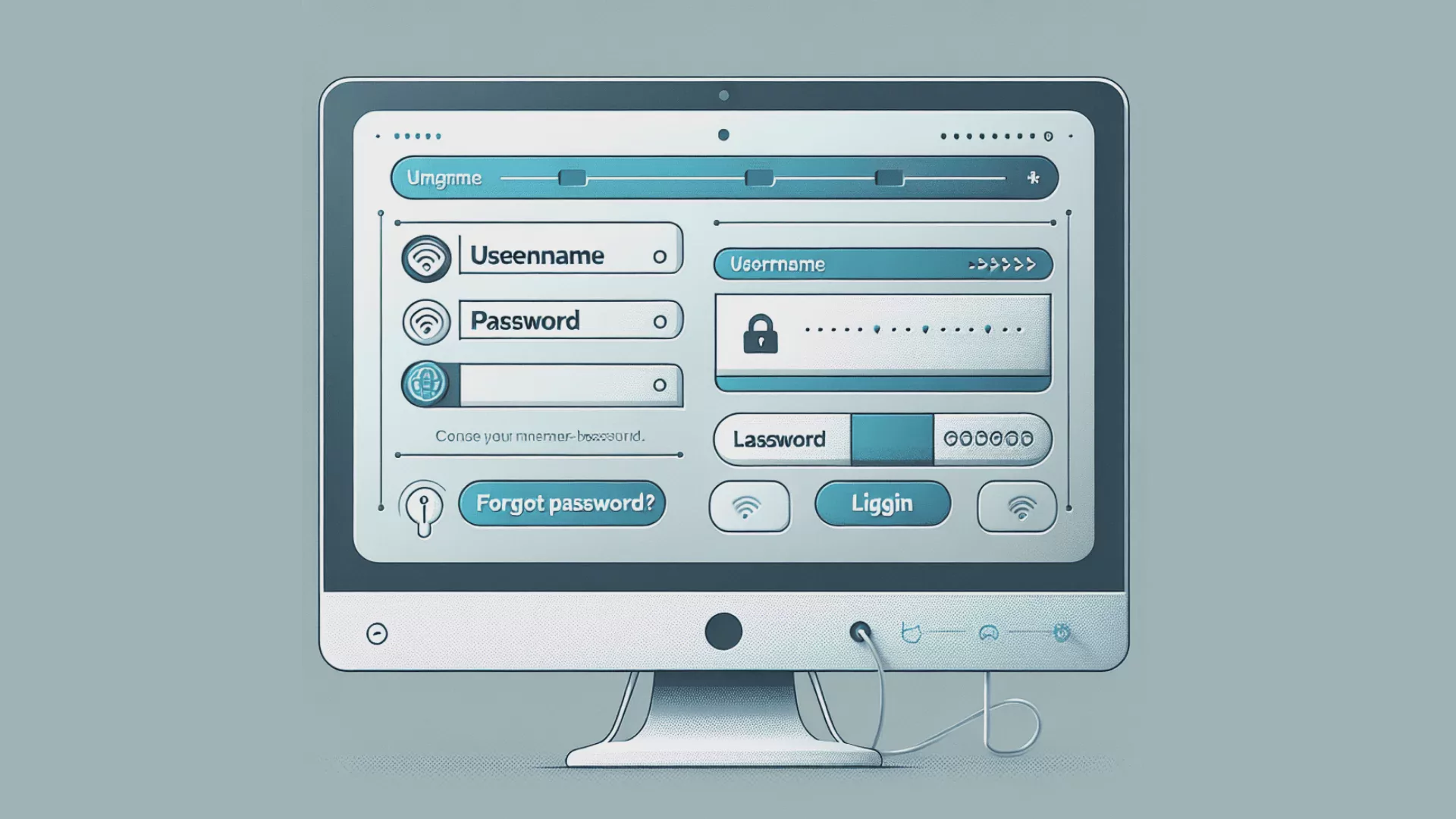
Open a browser and enter the router's IP address in the address bar (commonly 192.168.1.1 or 192.168.0.1).
Enter the username and password (refer to the label on the device or the user manual for the default information; for most routers, the default username and password are admin).
After logging in to the management interface, complete all the settings again.
Place the router in a well-ventilated area, away from heat sources. If the issue persists, consider adding a cooling pad or replacing the router with one that has a higher load capacity.
1.2 Improper Router Placement
Placement is a key factor affecting network quality. Placing the router inside a cabinet, next to a thick concrete wall, or too far from the area where it is used can weaken the Wi-Fi signal and cause it to be blocked by walls or furniture.
Solution
Move the router to a central, open, and elevated location indoors; keep it away from large metal objects, corners, and devices that can easily interfere with the signal, such as microwaves and baby monitors.
1.3 The Router’s Signal Cannot Cover the Area of Use
If the router’s signal has difficulty covering the entire home or office space, some areas may experience slow network speeds or dead zones. This is especially noticeable in large homes, multi-story offices, or locations with thick walls and partitions.
Solution
If the space is not very large, you can use a Wi-Fi extender or replace the router with one that has a greater coverage range.
For large spaces, multiple mesh Wi-Fi nodes can be deployed to strengthen the signal. Each node can simultaneously provide a stable, high-speed network connection; wired networking can also be used to supplement areas that are difficult for the signal to reach.
1.4 Outdated Router
After many years of use, a router’s signal transmitters, processor, and memory will all experience performance degradation, resulting in reduced coverage and slower packet processing. In addition, most older models have stopped receiving firmware updates, cannot support the latest Wi-Fi standards, and may struggle to handle high-speed network transmission.
Solution
Check when the router was purchased and review its specifications. If it has exceeded its service life or does not support newer standards such as Wi-Fi 6, replacing it with a new model is recommended.
1.5 Line Issues
The physical connection cables between devices are also an important factor affecting internet speed. The ADSL (Asymmetric Digital Subscriber Line) commonly used in the early days provided internet access through telephone lines. Today, this technology is clearly outdated, with speeds far below those of mainstream fiber-optic and cable networks. Combined with aging lines, network conditions deteriorate even further.
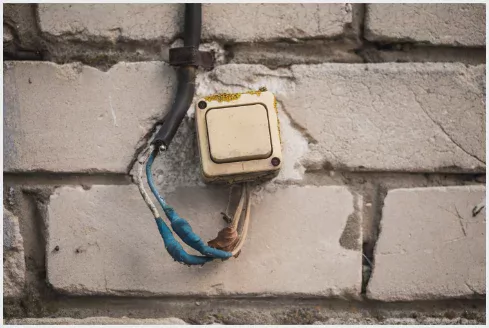
Most users connect their modems, routers, and devices using network cables. Problems with the cables are usually caused by poor quality or damage. Common causes include being crushed or worn when moving large furniture, or deterioration of the outer insulation due to prolonged exposure to high and low temperatures and sunlight. If there are pets such as cats or dogs at home, the cables can also easily be damaged by scratching or biting.
Solutions
If you are still using ADSL lines, it is recommended that you upgrade to fiber-optic or cable internet.
Inspect the cables regularly to check whether the connectors are bent or the cables are worn or damaged. Replace aging or faulty cables immediately.
If a longer network cable is slightly damaged, use a crimping tool to cut out the faulty section, crimp on a new connector, and continue using it.
To prevent pets from chewing on cables, install dedicated cable protectors or store the cables in areas that pets cannot reach. You can also spray the cables with lemon water, medicated oil, or other harmless scents that pets dislike. In addition, prepare chew toys and rubber chewing products to redirect the pets’ attention.
1.6 Insufficient Bandwidth
Bandwidth represents the maximum transmission rate of a network connection. Like lanes on a highway, the more lanes there are, the greater the traffic capacity and the faster the data transmission speed. When the bandwidth cannot handle the demands of simultaneous internet use, the internet speed naturally slows down.
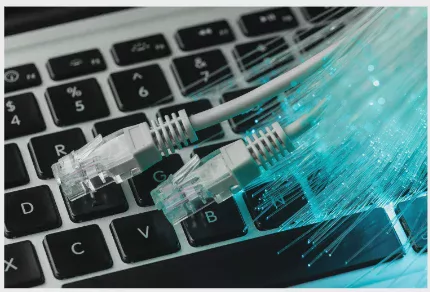
Broadband connections are currently mainly divided into two types: fiber and cable. Fiber can provide greater bandwidth and faster speeds. If you frequently experience slow internet speeds, consider upgrading to a fiber network. Some broadband plans have data caps, and once usage exceeds the limit, the internet service provider will throttle the connection.
Solutions
If your home has many devices connected to the internet and frequently uses large amounts of data, consider upgrading to a higher-bandwidth internet plan.
If you want to switch from a cable network to fiber, first assess your bandwidth and speed requirements as well as your budget, then choose a suitable internet service provider. Although fiber installation costs are higher, internet speeds will improve significantly.
Check whether your current internet plan has a data limit. If it does, monitor your usage or upgrade to a plan with no data cap to avoid unexpected throttling.
1.7 Multiple devices simultaneously performing high-bandwidth tasks
When multiple devices on the same network simultaneously perform data-intensive activities such as watching 4K videos, playing online games, and downloading large files, network congestion can easily occur, causing overall internet speeds to decline.
Solutions
Enable the router’s QoS (Quality of Service) function and manually assign bandwidth priorities to ensure that important devices and activities have priority access to network resources.
Try to stagger high-data-usage activities. For example, when someone is attending an online meeting, others should avoid downloading files or playing online games at the same time.
If multiple devices frequently transmit large amounts of data simultaneously over an extended period, consider upgrading to a higher-bandwidth internet plan.

1.8 Unauthorized network access
Slower internet speeds may also indicate that someone else is using your Wi-Fi without authorization. Unknown users may consume significant bandwidth downloading and transferring files, or even carry out activities that pose cybersecurity risks.
Solutions
Set a strong Wi-Fi password and enable WPA3 encryption if needed.
Regularly check the list of connected devices on your router. If you find an unfamiliar device, change your Wi-Fi password immediately. Follow these steps:
Log in to the router's administration interface (refer to the previously mentioned router reset instructions).
Go to the wireless network settings and change the Wi-Fi password.
Save the settings. All devices will then need to reconnect.

1.9 Channel congestion
Wi-Fi signals can operate on different channels. If multiple nearby routers use the same channel, they compete for bandwidth and cause congestion. This issue is most common in apartment buildings and densely populated areas.
Solution
Use a Wi-Fi analysis tool to detect nearby channel conditions, log in to the router’s settings page, and manually switch to a channel with low usage. Although most routers have an automatic channel selection feature, electromagnetic interference from microwave ovens, Bluetooth devices, and other sources may still cause the selected channel to be unsuitable.
Switch to the 5 GHz band. Although this band has weaker penetration, it offers more available channels and generally experiences less congestion.

1.10 Malware Consuming Resources
After malware such as Trojans and spyware infiltrates a device, it occupies system memory and running processes while continuously connecting externally to transmit data and consume bandwidth. This not only slows down the affected device but can also impact the network in the entire area.
Solution
Regularly scan devices with the latest antivirus software and remove malware.
Keep the operating system and applications up to date at all times, patch security vulnerabilities, and prevent malware infections.
Do not download software or files from unknown sources, and exercise caution when clicking suspicious emails and links.
1.11 Background Processes Consuming Bandwidth
Many applications on a device run automatically in the background, such as automatic system updates, cloud backups, and streaming services. These activities are easily overlooked by users, but they continuously consume bandwidth and slow down other internet activities.
Solution
Open Task Manager or Activity Monitor on your device and close programs running in the background that consume bandwidth. Before important activities such as online meetings, livestreams, or gaming, be sure to pause unnecessary background tasks.
Schedule device updates to run during off-peak hours, such as early morning, to avoid peak network traffic.
1.12 ISP Service Outage
Sometimes slow internet speeds are not caused by the user's device, but by failures in the ISP's infrastructure, inadequate maintenance, or insufficient network capacity during peak hours.
Solution
Run an internet speed test to confirm whether the actual speed matches the specifications of the plan you originally subscribed to.\n
If you suspect an issue on the ISP's end, check official service announcements or contact customer service to report the problem.\n
If speeds remain low during peak hours over an extended period and you have ruled out problems with your own devices, consider switching to an ISP with more reliable service.
1.13 Website / Platform Server Issues
Server failures on specific websites or online platforms can also cause slow connections or prevent pages from loading. These issues are usually temporary. If they occur frequently, consider using another reliable alternative service.
Solution
Test other websites to confirm whether your own network connection is working properly.
Abnormal browser cache or cookies may also cause websites to fail to load. Clear them and try again.
Try connecting with a different browser.
Use an online website monitoring tool to check whether the platform is experiencing a complete outage.

1.14 VPN Service Issues
Many users use VPNs to protect their online privacy, but low-quality VPNs are a common cause of slower internet speeds. The farther away the connected server is, the higher the network latency and the longer data transmission takes.
Solutions
Prioritize VPN servers that are geographically closer, and switch between multiple servers for testing.
If the connection remains unstable and speeds stay low for an extended period, consider switching to a professional and reliable VPN service.
1.15 Public Network Infrastructure Failure
This situation is relatively unlikely, but public network lines may be interrupted or malfunction due to force majeure events such as natural disasters or accidental damage. You can confirm the situation with your network provider or neighbors, but ultimately, you can only wait for the repairs to be completed.
II. Key Points for Troubleshooting
2.1 Regularly Test Internet Speed and Record Abnormal Conditions
First, check the network cables and hardware devices to confirm that there are no abnormalities, then continue monitoring changes in internet speed. When the speed drops noticeably, record the time of occurrence, the device being used, online activities, and traffic conditions. This helps determine whether the issue is persistent or occasional and whether it is related to peak hours or a specific device. Not only does this help clarify the cause of the problem, but it also provides complete information when reporting the issue to your internet service provider.
2.2 Continue Monitoring Network Status After Adjusting Settings
Whether you move the router, upgrade your bandwidth plan, or make other setting adjustments, a short-term improvement in internet speed does not mean that the problem has been completely resolved. It is recommended to test the speed at fixed times and conduct tests during peak network periods, track the situation over the long term, confirm that the improvement measures are effective, and then decide whether to proceed with further action.
III. Conclusion
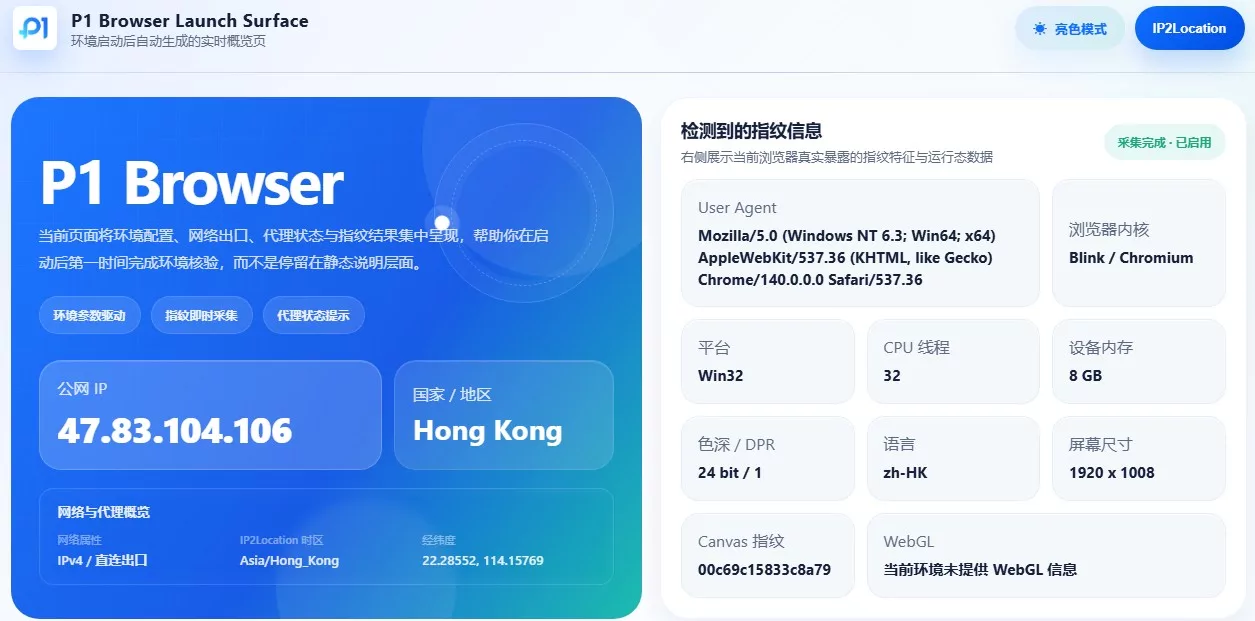
After understanding the causes and solutions for various internet speed issues, using a suitable speed test tool can help optimize your network environment more efficiently. The P1Browser speed test tool is easy to use and fully featured, making it suitable for all users. It supports multiple operating systems and devices, and speed tests can be performed simply by opening a browser. The testing process is fast and the data is clear, allowing you to quickly understand your network status. If you use a VPN, you can also use it to detect DNS leaks and confirm the effectiveness of your privacy protection.