



I. Introduction
This article is the official standard user guide for the P1Browser fingerprint browser. It is intended for beginners, studios, and corporate teams, and provides detailed instructions on software login, environment creation, basic parameter settings, fingerprint debugging, proxy IP configuration, environment storage, and daily usage standards. The guide is easy to understand and provides clear steps. Configuring the software according to these standards can minimize platform risk controls to the greatest extent and ensure the secure, isolated operation of multiple accounts.
II. Basic Software Preparation
2.1 Downloading and Installing the Software
Users should visit the P1Browser official website to download the genuine installation package. Do not use third-party modified installers. During installation, it is recommended to install the software on a non-system drive to avoid software lag, cache buildup, or execution errors caused by insufficient memory on the C drive. After installation is complete, right-click the software icon and select Run as system administrator to ensure that the software obtains full system permissions.
2.2 Account Login
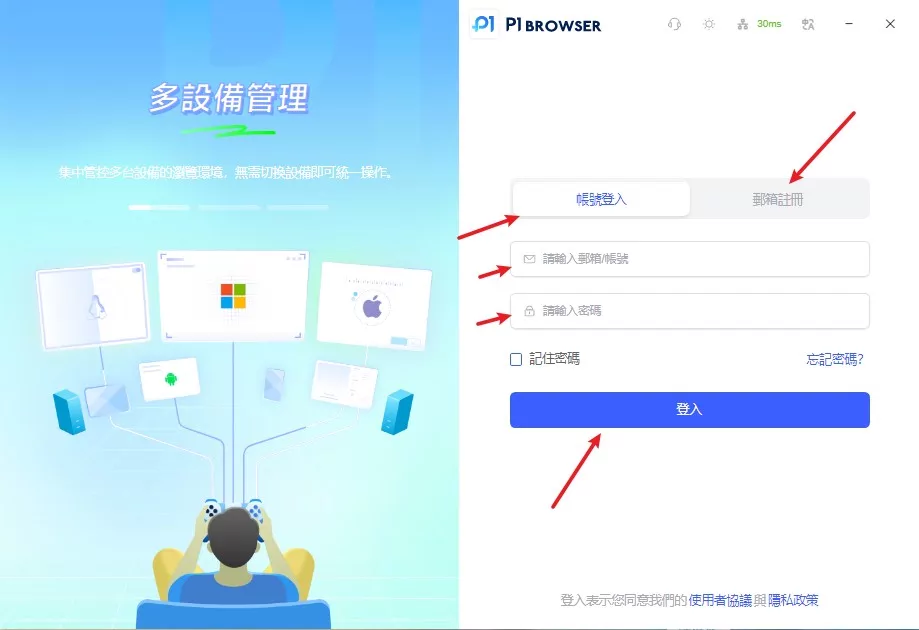
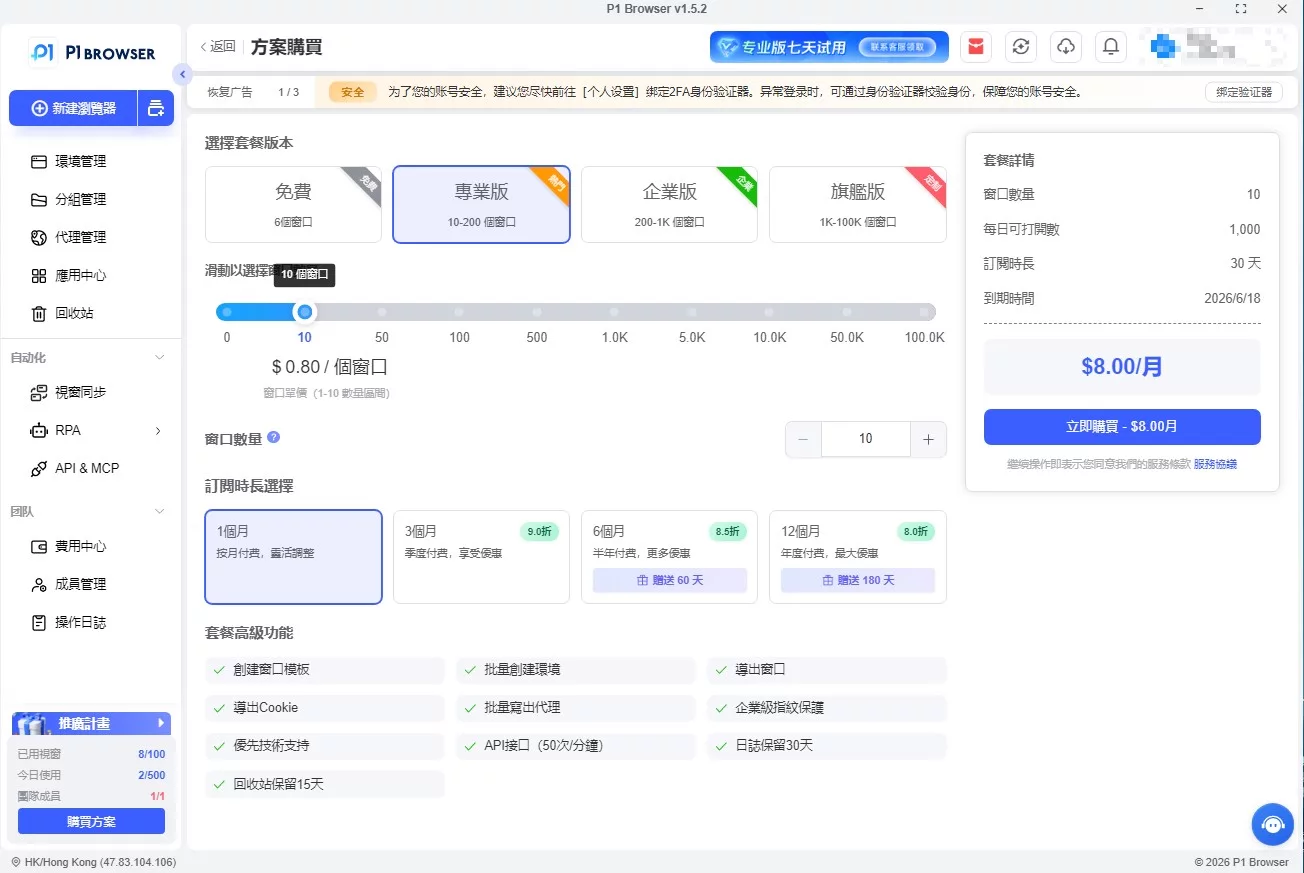
Open the client and enter your registered account and password to log in. When logging in for the first time, the software will automatically load the kernel files; you can use it normally once initialization is complete. If you need to activate permissions or upgrade your plan, contact official customer service to arrange activation. Multiple permission options are available, including the Personal, Studio, and Enterprise Team editions.
III. Adding a Browser Environment (Basic Creation Process)
3.1 Creating a New Environment
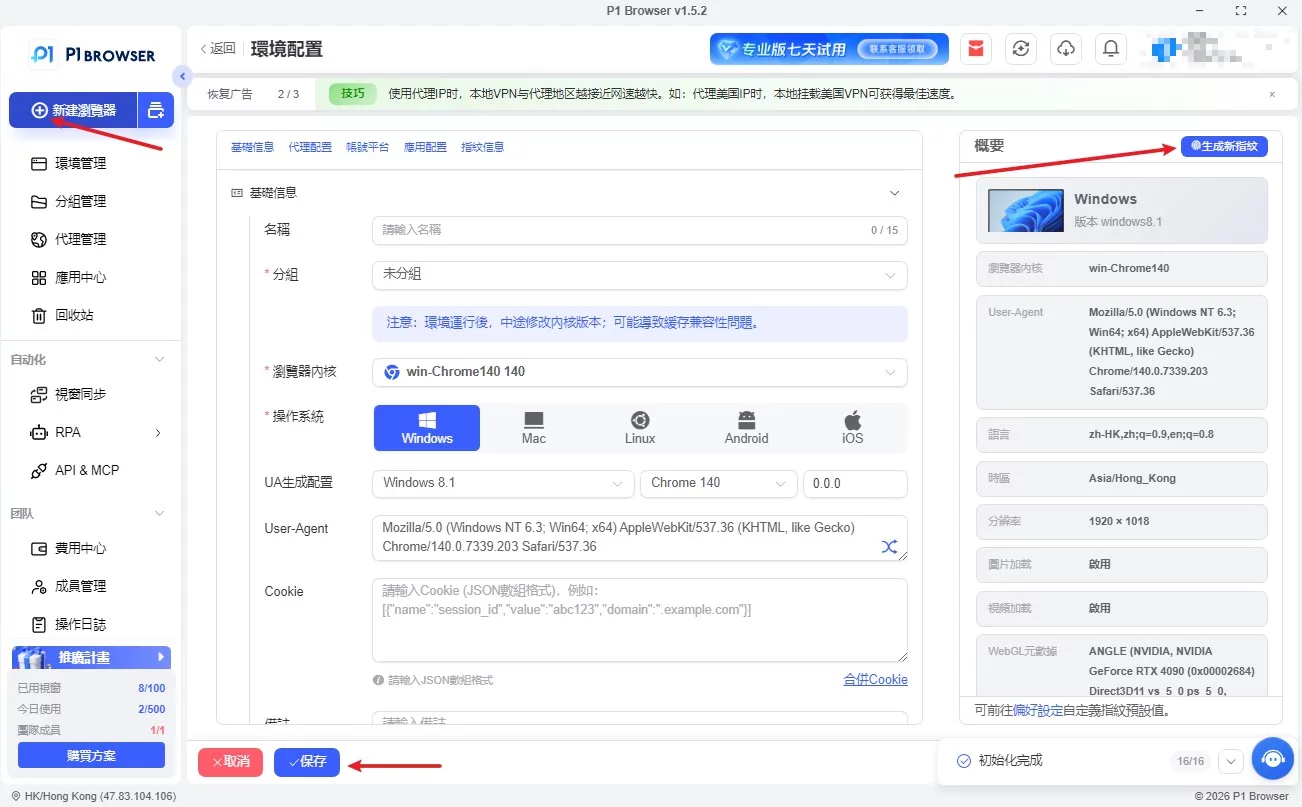
Go to the software homepage and click the [Add Environment] button in the interface to open the environment configuration page. Follow these guidelines when filling in the basic information:
- Environment Name: We recommend adding custom notes specifying the platform, region, and purpose to facilitate subsequent batch management.
- Group Management: Create the relevant groups in advance and categorize them by business project, operator, and platform type.
- Tag Notes: Add custom tags to enable quick filtering and batch searching of environments.
3.2 Selecting a Browser Engine
P1Browser is equipped with multiple versions of the native Chrome engine, with no secondary modifications and an exceptionally clean environment. Users can freely switch engines according to the operating platform: for general cross-border platforms and community platforms, we recommend using the latest stable engine; for older compatible platforms, select a classic older-version engine to accommodate the detection rules of different platforms.
IV. Proxy IP Configuration Tutorial (Browser Engine Focus)
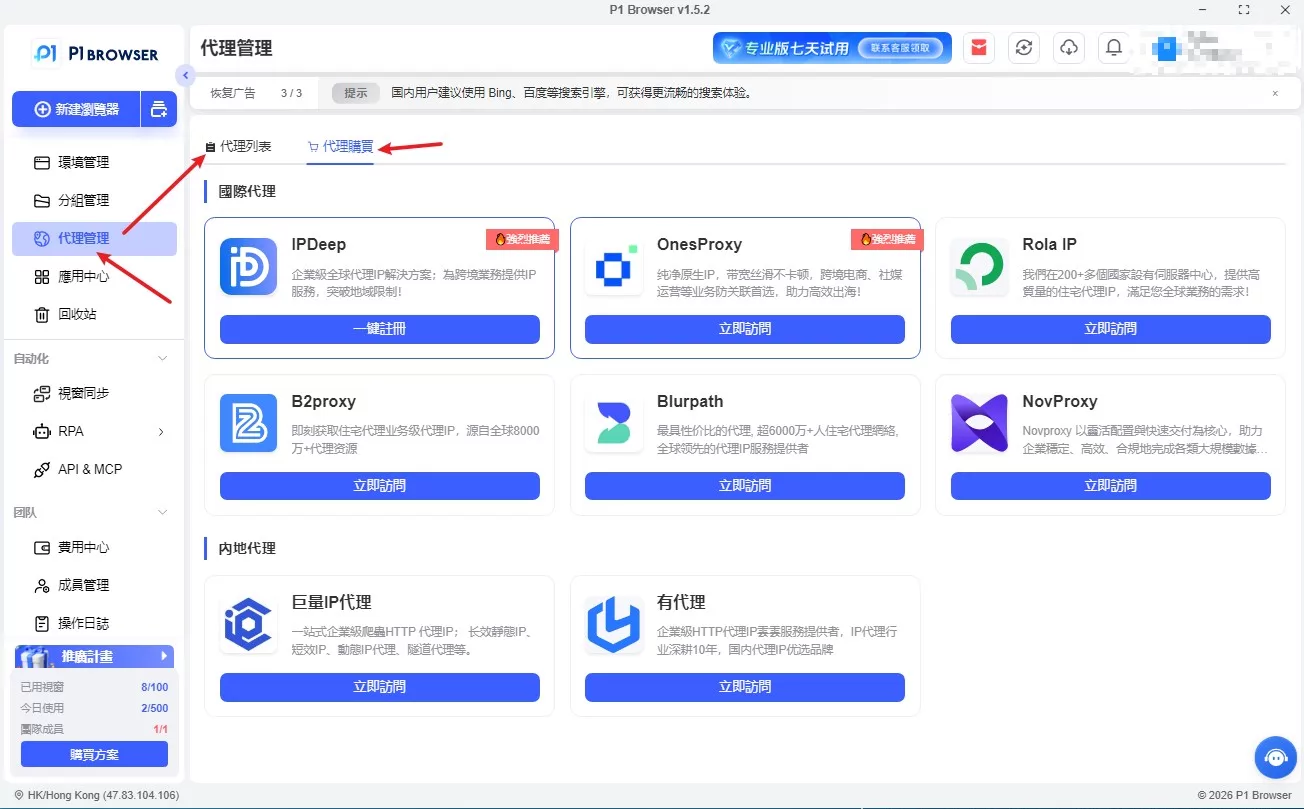
Proxy IPs are the most important factor in preventing account association. Unclean IP sources, inconsistent regions, and incorrect communication protocols are the main reasons accounts are banned. The following is P1Browser's standard proxy configuration process.
4.1 Supported Proxy Types
The software is fully compatible with mainstream proxy communication protocols: Socks5, HTTP, and HTTPS. It supports static residential IPs, dynamic proxies, and dedicated IP lines, making it suitable for all cross-border, community media, and multi-account operation scenarios.
4.2 Detailed Proxy Configuration Steps
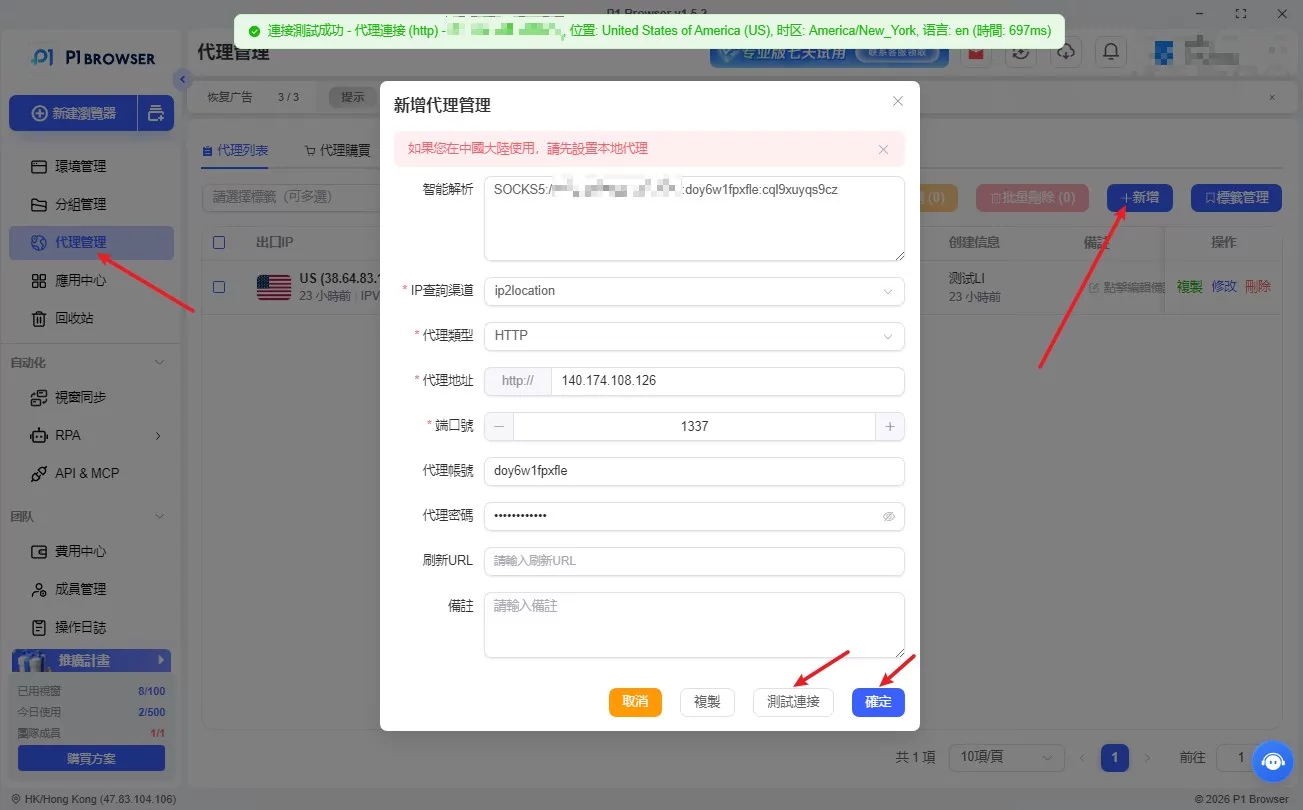
- Find the [Proxy Settings] module on the Environment Configuration page and enable the proxy function.
- Select the corresponding proxy protocol and correctly enter the IP address, connection port, proxy account, and password.
- After completing the entries, click [Detect Proxy]. The system will automatically verify the IP connection status, physical location, network latency, and cleanliness.
- Only save and use it after detection shows that the connection is successful, the location is correct, and the latency is normal.
4.3 Proxy Usage Precautions
- Each individual environment must correspond to a separate, dedicated IP. Sharing the same IP across multiple environments is prohibited.
- Frequently switching the region associated with an IP is prohibited to prevent changes in the IP address from triggering risk control mechanisms.
- Filter out blacklisted and contaminated IPs, and immediately stop using low-quality IPs.
- The connection status must be re-detected after every dynamic IP switch.
Five. Fingerprint Parameter Configuration Tutorial
P1Browser provides the most comprehensive fingerprint modification options in the industry and automatically generates unique virtual device information to eliminate association characteristics at the source.
5.1 Basic Fingerprint Configuration
Basic fingerprints include the UA identifier, operating system version, screen resolution, time zone, language, geolocation, font list, sound card information, memory parameters, and more. It is recommended to match the time zone and language to the proxy IP region to ensure consistency among the IP region, time zone, and language, simulating a genuine local device.
5.2 Advanced Fingerprint Configuration
- Canvas image fingerprint: Intelligently adds random noise to prevent image pixel characteristics from being correlated.
- WebGL graphics card fingerprint: Simulates genuine graphics card hardware parameters to avoid hardware capture and identification.
- Audio fingerprint: Differentiates audio sampling data to eliminate overlapping acoustic characteristics.
- SSL fingerprint: Uses the native browser's encrypted connection handshake to disguise itself as a legitimate, genuine browser.
5.3 Plugin and Extension Settings
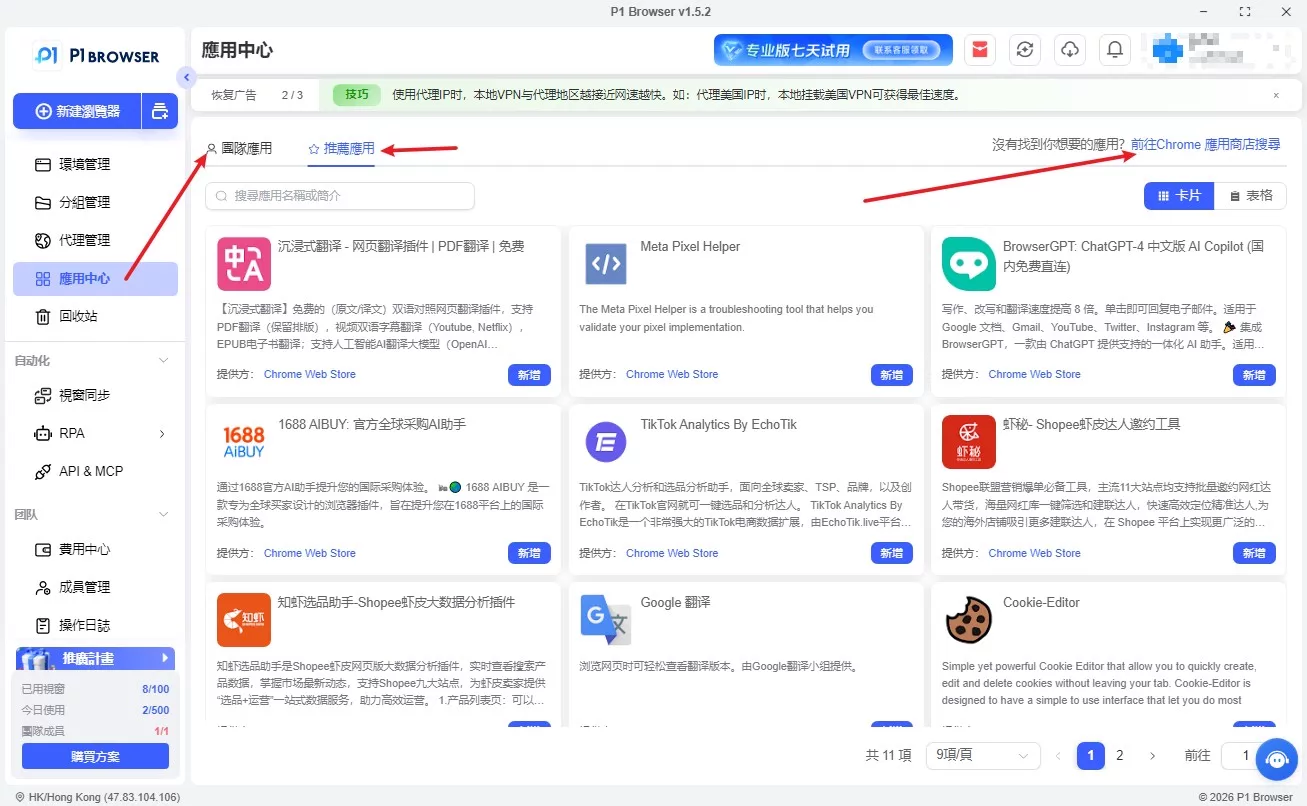
Users can enable or disable components such as Flash, input methods, and playback plugins; bulk installation of third-party extensions is supported. All extensions are independently isolated, preventing data linkage issues.
VI. Advanced Feature Configuration
6.1 Bulk Environment Configuration
Studios and enterprise users can use the bulk creation, bulk duplication, and bulk launch functions to duplicate environments with the same parameters in one click, greatly reducing the time required for repetitive configuration and making them suitable for large-scale matrix deployment.
6.2 Cloud Data Synchronization
Enable encrypted cloud storage to automatically back up environment configurations, account caches, and bookmark data; when changing computers or reinstalling the operating system, you can synchronize all environment data with one click. Data is stored permanently and will not be lost.
6.3 Cache and Cookie Management
Supports manually clearing the cache and deleting cookies individually. You can set the browser to automatically clear temporary miscellaneous data when it is closed, keeping the environment clean and reducing platform tracking records.
VII. Environment Storage and Proper Usage Guidelines
7.1 Environment Storage
After configuring all proxies, fingerprints, and parameters, click the 【Save】 button. The system will lock all current device fingerprint information, ensuring that the environment fingerprint remains stable and unchanged each time the environment is opened thereafter, making abnormal situations less likely during long-term use.
7.2 Startup Requirements
- Before starting the environment each time, be sure to redetect the IP connection status.
- When first opening the environment, let it sit for thirty seconds to warm up; do not refresh the webpage frequently.
- Mimic real user browsing habits and avoid mechanical operations such as rapid clicking and batch registration.
7.3 Prohibited Actions
- Do not frequently change the region associated with the IP within the same environment.
- Do not mix abnormal accounts, non-compliant accounts, or contaminated IPs.
- Low-spec computers must not open a large number of environments simultaneously, as this may cause abnormal network connection characteristics.
VIII. Troubleshooting Common Issues
- Proxy connection failure: Check the IP account and password, communication protocol format, and whether the local firewall is blocking the connection.
- Slow webpage loading: Change the browser kernel, clear the cache, or switch to a high-quality proxy IP.
- Software execution lag: Close unnecessary background programs. It is recommended to use a solid-state drive to run the software.
- Abnormal website prompts: Check whether the time zone, language, and IP region remain consistent.
IX. After-sales Service
P1Browser provides technical support, including environment configuration guidance, proxy troubleshooting, fingerprint optimization, and consultations on risk-control issues. Enterprise users enjoy one-on-one dedicated technical services, customized matrix deployment solutions, and free updates to the software kernel and fingerprint calculation mechanisms, ensuring users can operate stably over the long term.
Ten. Summary
Creating environments according to specifications, configuring proxies correctly, and making moderate fingerprint adjustments are the core keys to stable multi-account operations. With comprehensive fingerprint modification features, a simple and intuitive interface, a stable and secure isolated environment, and a complete after-sales service system, P1Browser provides individuals, studios, and enterprises with secure and lawful browser solutions. Strictly following the official tutorials for configuration and use can effectively avoid account association risks and achieve long-term, stable matrix-based operations.