



Logging into three separate Amazon stores individually works fine, but once they are integrated into a single ERP system and managed by one person, verification codes become frequent, prices are changed in the wrong regional site, and a colleague who left six months ago can still access the backend—these three phenomena often appear together. They usually point not to insufficient tool functionality, but to a lack of one-to-one alignment across four layers: account entity, Seller Central roles, login environment, and tool write scope.
The following expands on the actual dependency order: first, identify which account structure you belong to; then, bind the login environment and tool write scope to specific stores; next, allocate permissions by role; then, perform inspections using checklists with clear decision criteria; and finally, discuss tool selection.
First, confirm the account structure: multi-site under the same entity is not the same as multi-entity with multiple stores
Amazon typically operates one account per region. If there is a reasonable business need, you can hold multiple accounts, and policy issues with one account may affect related accounts (seeAmazon's official explanation on multiple sales accounts and account health). Therefore, the first step is not to choose tools, but to classify yourself into one of the three structures below.
- Multi-site under the same entity:operating sites in North America, Europe, Japan, and others under a single account. The isolation granularity is at the site and regional level, with the focus on distinguishing pricing, inventory, and shipping settings for each site, rather than creating a separate identity.
- Multi-Entity, Multi-Store:Different corporate entities each operate their own stores. The isolation granularity is at the entity level, requiring each entity to have an independent login environment and independent tool authorization.
- Hybrid Structure:Combining multiple sites within entities with multiple entities. This is the most common scenario, yet the easiest where configuration shortcuts are taken, treating "all stores" as the default authorization scope.
The judgment method is straightforward: draw a table with seller account entities as rows and sites as columns. The same row shares the same login entry and therefore the same set of permission rules; lines must be separated between different rows. This table serves as the foundation for all subsequent configurations and is the explanatory material to provide when association prompts occur. For the relationship between account structure and roles, refer toGetting Started with Amazon Seller Central and Multi-Account Operations: Account Structure, Permission Division, and Troubleshooting Common Risk Control Issues.
Account Isolation: Binding Login Environments and Tool Write Ranges to Specific Stores
Isolation is not just about "opening multiple browsers"; it is about ensuring that every operation can be traced to exactly one specific store. Follow the sequence below to minimize costs.
- One Store, One Four-Layer Mapping Card:Clearly document the account entity, Seller Central login email and role, fixed login environment (which device, which browser profile, which network egress), and tool authorization scope (which stores are allowed to be written to). If any field on the card is not filled in, do not connect the tools yet.
- Fix login environments; do not cross sessionsThe same browser profile must only log in to stores under the same entity; switch environments when the operator changes, and do not temporarily borrow a colleague's already logged-in window.
- Tool authorization by storeCheck each store individually in ERP or store management tools; do not use the default 'all stores' scope. After authorization, run an out-of-permission test: attempt to modify prices for Store B using Store A's permissions, and it should be denied.
- Read back after every writeAfter changing prices, inventory, replies, or listings, go to the target store's backend to verify fields and confirm changes are applied to the correct site and SKU. This is the only way to prove 'no wrong store was written'.
- Keep an audit logRecord who, when, which stores, and what scope was modified. If a cross-store error occurs, you can immediately distinguish whether it is a permission issue or a tool issue.
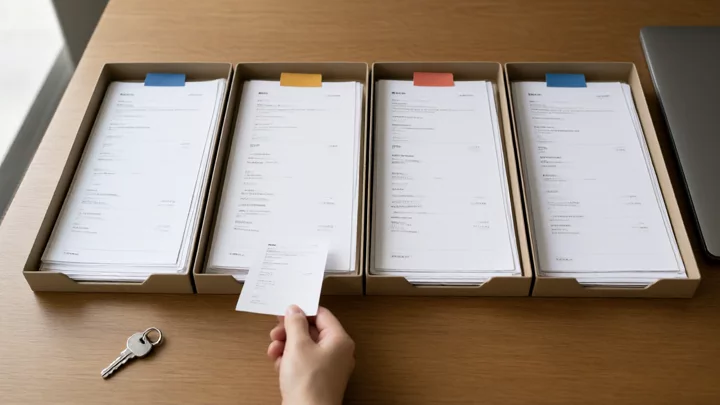
Permission allocation: Assign least privilege by role; main accounts are for administration only
User permissions in the Seller Center should be divided by job role, not by "who finds it convenient." Operations need access to listings, pricing, and inventory; customer service needs orders and messages, typically without withdrawal access; advertising requires ad accounts or the ad backend; finance needs settlements and reports, but not price changes; warehousing needs shipping and inventory, but not settlements. The main account is used solely for managing members and key settings and should not be shared with anyone performing daily operations.
- Define the job role list first, then invite membersList the specific permission items required for each job role to avoid inviting members first and then gradually restricting access.
- Invite members and assign corresponding roles in the Seller CenterOne person, one account; do not use shared login credentials.
- Enable two-factor authenticationand bind the verification method to the employee personally, not to a manager's phone.
- Synchronize authorization on the tool sidePermissions not present in the Seller Center should not exist in the tools either; role names may differ between the two, but the scope must be consistent.
- Revoke access on the day of resignation or role changeClose and log the timestamp for Seller Center memberships, tool memberships, ad accounts, financial viewing permissions, and chat tool bindings, item by item.
Do not merge advertising and financial permissions for the same person by default. Placing these two permissions together allows the same individual to both spend money and view settlements, leaving no second person to verify errors when they occur. For team permission boundaries in multi-person teams, read more on this topic.How to Use Your Amazon Seller Account and Seller Central: Store Management Tools and Compliance Boundaries for Multi-Account Operations.

Daily Inspection Checklist: Monitor Anomalies Daily, Reconcile Permissions Weekly, and Conduct Read-Backs Monthly
A common reason for inspection failures is a “lack of criteria for judgment.” The table below specifies what constitutes an anomaly for each item and the immediate action to take.
| Frequency | Check Item | Criteria for Judgment | Action for Anomaly |
|---|---|---|---|
| Daily | Login Verification Code | A store repeatedly requests verification codes in a short period | First check whether the store's browser profile and network egress are shared with other stores, then check the account status |
| Daily | Order site attribution | The order's site and product line do not match | Suspend the tool's write operations for the store, and read back the price and inventory change records from the last 24 hours |
| Daily | Account health notification | A new policy alert appears | View the original text in Seller Central on the same day; do not rely on the tool's summary |
| Weekly | Sub-account list | Encountering unknown or former team members | Remove immediately, and audit that member's operation logs from the past 7 days |
| Weekly | Tool authorization scope | The number of stores covered by a tool account exceeds the authorized count | Revoke access and re-authorize on a store-by-store basis, then conduct a privilege escalation test |
| Weekly | Two-factor authentication status | Team members have not linked their personal verification methods | Complete the linking process on the same day; supervisors must not manage these credentials on their behalf |
| Monthly | Price and inventory read-back | Spot check discrepancies between SKU and backend values | Complete the SKU mapping table, then rerun the batch task |
| Monthly | Residual permissions from departures | Cross-checking against the departure list reveals unclosed permissions | Revoke item by item and record the revocation time |
| Monthly | Account health and association alerts | Receive notifications related to account relationships | Follow seller center notifications and official policies to organize entity and business relationship documentation |
If verification code issues are concentrated in a specific fixed time period or on certain devices, firstHow to troubleshoot frequent session expirations in multi-store logins? Checklists for account, network, and browser environmentForensic order checks are more effective than repeated re-logs.
How to choose a store management tool: first look at write scope and read-back verification
When choosing, the functional list is of limited value. Look at three hard indicators first:
- Whether write scope can be limited by storeAuthorization granularity is at the store level, not account level covering all stores.
- Whether read-back verification is possible after operationsAfter bulk price/inventory changes, the actual values in target stores can be pulled back for comparison.
- Whether member permissions can be revoked upon job changesThe member system in the tool must correspond to departures and role changes, not rely on memory.
Tools cannot replace account structures and permission systems. If the same team operates on TikTok Shop, Shopify, eBay, and other platforms, first use the same four-layer framework to map each platform's account entities and backend roles clearly before considering a unified workflow. Specific differences are detailed inHow to Choose Multi-platform Seller Account Management Tools: Operational Differences and Unified Workflows from Amazon, TikTok Shop to Shopee. For tool comparison methods when dealing with many stores, refer toRunning more than five stores: How to choose management tools? A comparison of account isolation and team collaboration features., andHow to use Amazon Seller Central: A checklist for multi-account operations and store management tool selection..
FAQs
If different sites are registered under the same business license, will the platform consider them multiple accounts?
Amazon typically operates accounts by region. When the same entity operates stores in multiple regions, first verify if an account already exists for that region. Whether a multi-account relationship that requires disclosure exists depends on the actual business connection between the accounts and platform policies; defer to Seller Central notifications and official multi-account policies. Document the entity, site, and login environment in a table to ensure you have materials to provide when questioned.
Can sub-accounts in Seller Central manage both advertising and finance simultaneously?
Technically, multiple permissions can be assigned to the same person, but it is not recommended operationally. Advertising involves spending, and finance involves settlements; combining them removes the mutual verification check. For a team of two or three people, keep permissions related to payments and withdrawals on the main account or with a designated person in charge.
Does using a fingerprint browser or a dedicated IP mean account isolation is complete?
No, that only covers the login environment layer. If the tool's authorization is still set to 'all stores', Seller Central roles are shared, or permissions for departing members have not been revoked, cross-store interference and CAPTCHA issues will still occur. The criterion for judgment is whether the four layers are one-to-one, not whether a specific tool was purchased.
During a routine check, if a specific store suddenly requires frequent CAPTCHAs, should you check the account or the network first?
First, check whether this layer is shared: whether this store shares browser profiles, network egress points, or tool sessions with other stores; then check whether new members or new tools were recently added. For the account's own status, rely on notifications from the seller center. When there is no evidence, do not repeatedly change passwords or log in frequently, as that will add new anomaly signals.